
Why use a template?
Templates save time and keep your emails consistent. Instead of typing the same message again and again, you can prepare it once and reuse it.
Steps to Create a Template
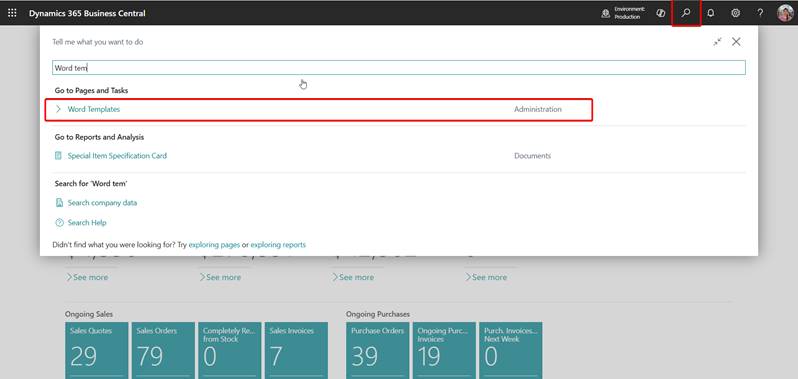
- In Business Central, select the search icon, type “Word Templates,” and open the Word Templates page.
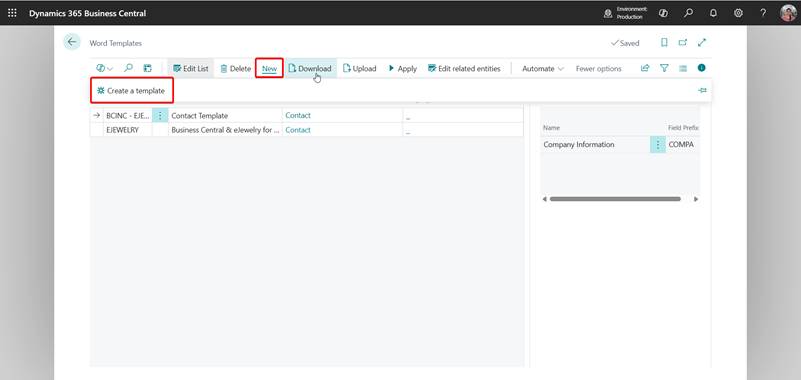
- Choose New à Create a Template to begin the guided setup.
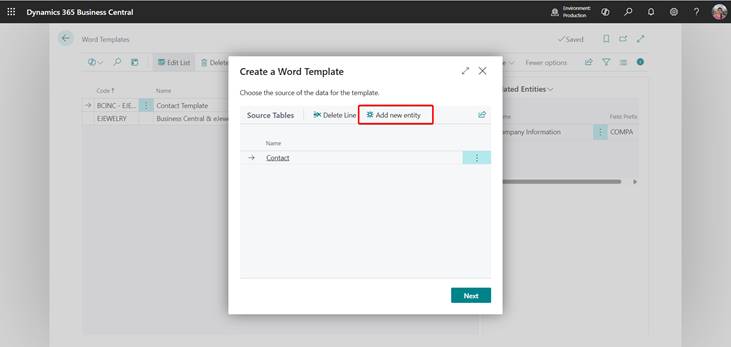
- Select Your Data Source:
- By default, the Contact table is chosen. To use other data (like Customer or Vendor), click Add New Entity.
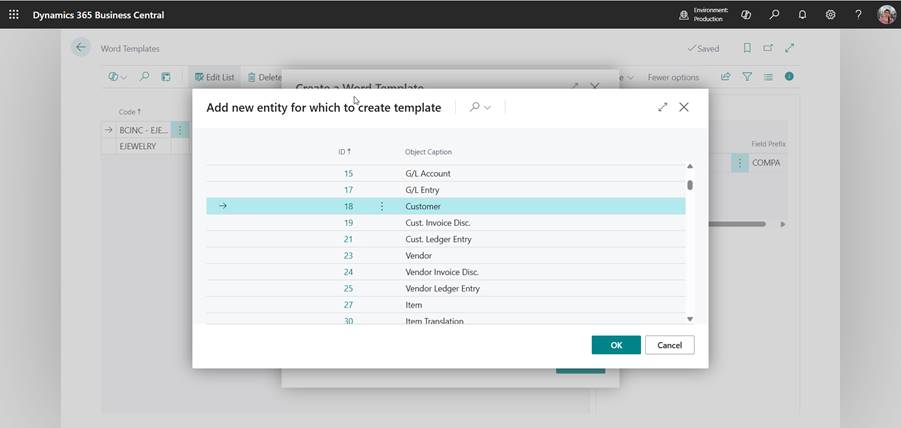
- Select the table you need (e.g., Customer) & Click Next.
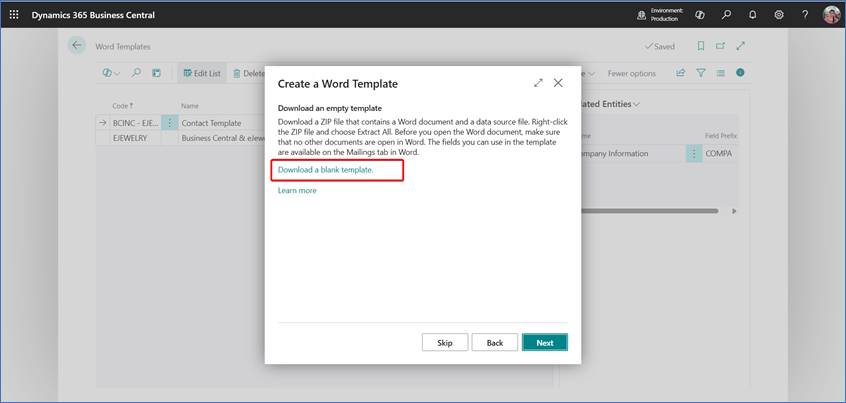
- Download the Template Package (Optional)
- Business Central generates a ZIP file.
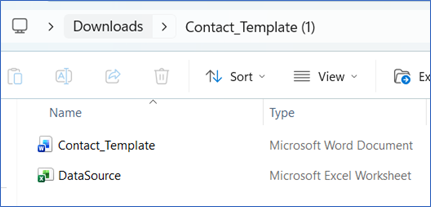
- It contains: Word document (.docx) — the template you’ll edit.
- A data source file (.xml) — defines available fields.
- Right‑click the ZIP → Extract All.
- Make sure no other Word documents are open before editing.
- Business Central generates a ZIP file.
- Design Your Email in Word
- Open the Word document.
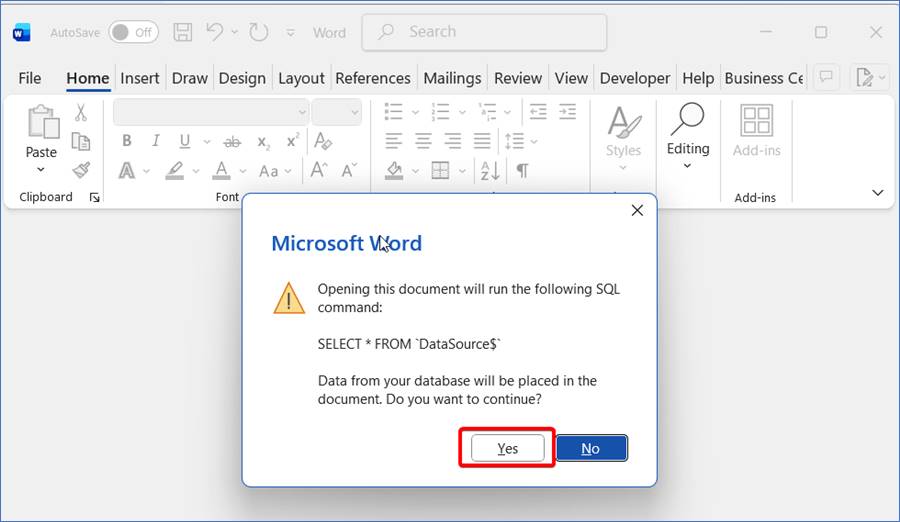
- When prompted with a message like “Opening this document will run an SQL command to retrieve data”, click Yes to allow Word to load the data fields
- Go to the Mailings tab.
- Use Insert Merge Field to add details like name, balance, or email address.
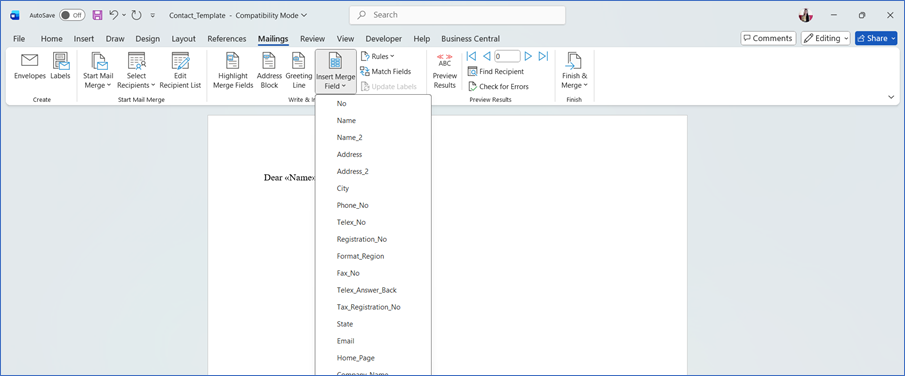
Example:

6. Save and Upload Back
- Save the Word file.
- Go back to Business Central → Word Templates page.
- Upload the file.
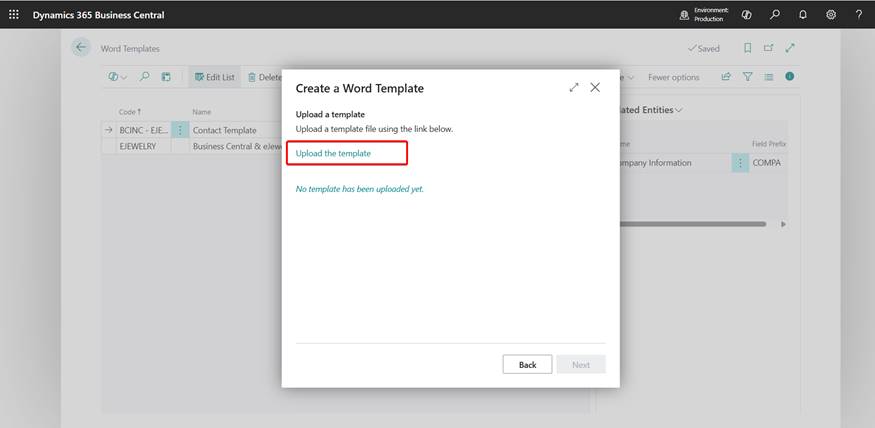
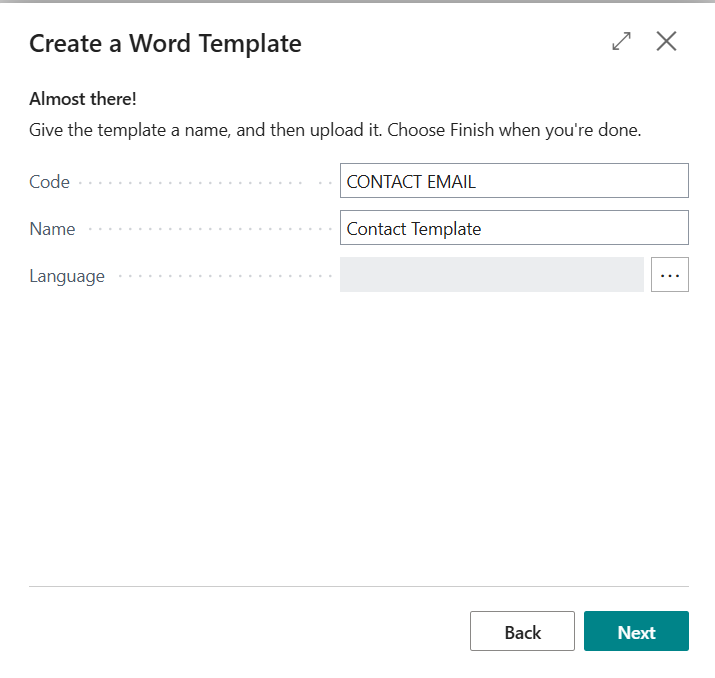
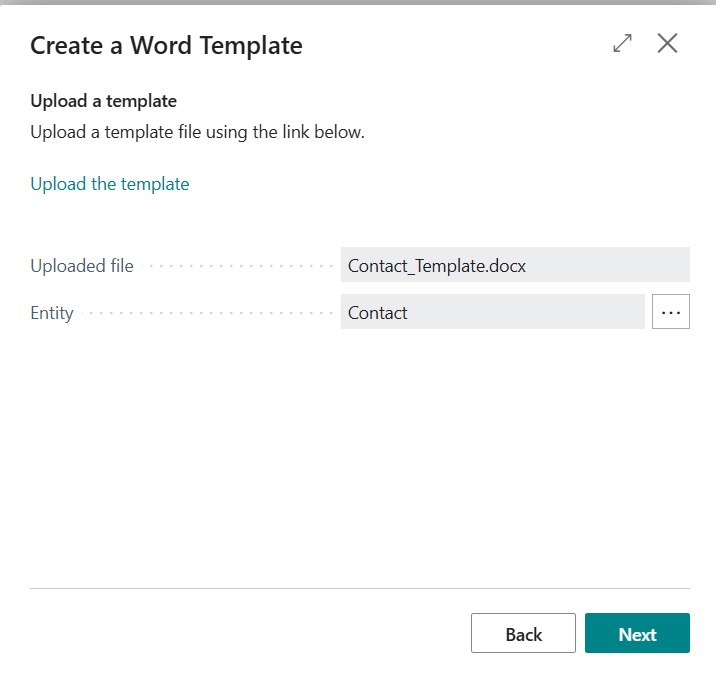 System will show the details of uploaded template, click next. On the next screen enter code, name, language and click next and then finish